Bootcamp, Vista, EFI-Update

Near the end of october I wanted to install Vista on my Mac Pro, using Bootcamp of course. The reason is that I need a Windows machine at home to watch speedruns on it, so it seemed like a nice thing to try.

Back then, I was unable to even get setup going: Whenever you selected a partition that’s not the first partition on the drive (where OS X must be). The installer complained that the BIOS reported the selected partition to be non-bootable and that was it.

Yesterday, Apple has released another EFI update which was said to improve compatibility with Bootcamp and to fix some suspend/resume problems (I never had those)

Naturally, I went ahead and tried again.

The good news: Setup doesn’t complain any more. Vista can be installed to the second (or rather third) partition without complaining.

The bad news: The bootcamp driver installer doesn’t work. It always cancels out with some MSI-error, claims to roll back all changes (which it doesn’t – sound keeps working even after that «rollback» has occurred). This means: No driver support for NVIDIA card of my MacPro.

Even after trying to fetch a vista compliant driver from NVIDIA, I had no luck: The installer claimed the installation to be successful, but resolution stayed at 640x480x16 after a reboot. Device manager complained about the driver not finding certain resources to claim the device and that I was supposed to turn off other devices… whatever.

So in the MacPro case, I guess it’s waiting for updated Bootcamp drivers by Apple. I hear though that the other machines – those with an ATI driver are quite well supported.

All you have to do is to launch the bootcamp driver installer with the /a /v parameters to just extract the drivers and then you use the device manager and point it to that directory to manually install the drivers.

The pain of email SPAM

Lately, the SPAM problem got a lot worse in my email INBOX. Spammers seem to more and more check if their mail gets flagged by SpamAssasin and tweak the messages until they get through.

Due to some tricky aliasing going on on the mail server, I’m unable to properly use the bayes filter of SpamAssasin on our main mail server. You see, I have an infinite amount of addresses which are in the end delivered to the same account and all that aliasing can only be done after the message has passed SpamAssassin.

This means that even though mail may go to one and the same user in the end, it’s seen as mail for many different users by SpamAssassin.

This inability to use Bayes with SpamAssassin means that lately, SPAM has been getting through the filter.

So much SPAM that I began getting really, really annoyed.

I know that mail clients themselves also have bayes based SPAM filters, but I often check my email account with my mobile phone or on different computers, so I’m dependent on a solution that filters out the SPAM before it reaches my INBOX on the server.

The day before yesterday I had enough.

While all mail for all domains I’m managing is handled by a customized MySQL-Exim-Courier setting, mail to the @sensational.ch domain is relayed to another server and then delivered to our exchange server.

Even better: That final delivery step is done after all the aliasing steps (the catch-all aliases being the difficult part here) have completed. This means that I can in-fact have all mail to @sensational.ch pass through a bayes filter and the messages will all be filtered for the correct account.

This made me install dspam on the relay that transmits mail from our central server to the exchange server.

Even after only one day of training, I’m getting impressive results: DSPAM only touches mail that isn’t flagged as spam by SpamAssassin, which means that it’s carefully crafted to look “real”.

After one day of training, DSPAM usually detects junk messages and I’m down to one false negative every 10 junk messages (and no false positives).

Even after running SpamAssassin and thus filtering out the obvious suspects, a whopping 40% of emails I’m receiving are SPAM. So nearly half of the messages not already filtered out by SA are still SPAM.

If I take a look at the big picture, even when counting the various mails sent by various cron daemons as genuine email, I’m getting much more junk email than genuine email per day!

Yesterday, tuesday, for example, I got – including mails from cron jobs and backup copies of order confirmations for PopScan installations currently in public tests – 62 genuine emails and 252 junk mails of which 187 were caught by SpamAssassin and the rest was detected by DSPAM (with the exception of two mails that got through).

This is insane. I’m getting four times more spam than genuine messages! What the hell are these people thinking? With that volume of junk filling up our inboxes how ever could one of these “advertisers” think that somebody is both stupid enough to fall for such a message and intelligent enough to pick the one to fall for from all the others?

Anyways. This isn’t supposed to be a rant. It’s supposed to be a praise to DSPAM. Thanks guys! You rule!

DVD ripping, second edition

HandBrake is a tool with the worst website possible: The screenshot that’s presented on the index page leaves behind a completely wrong image of the application.

When you just look at the screenshot, you will get the impression that the tool is fairly limited and totally optimized for creating movies for handheld devices.

That’s not true though. The screenshot is the screenshot of a light edition of the tool. The real thing is actually quite capable and only lacks the capability to store subtitles in the container format.

And it doesn’t know about Matroska.

And it refuses to store x264 encoded video in the OGM container.

Another tool I found after my first very bad experience with ripping DVDs last time is OGMrip. The tool is a frontend for mencoder (of mplayer fame) and has all the features you’d ever want from a ripping tool, while still being easy to use.

It even provides a command line interface, allowing to process your movies from the console.

It has one inherent flaw though: It’s single threaded.

HandBrake on the other hand, can split the encoding work (yes. the actual encoding) over multiple threads and thus can profit a lot of SMP machines.

Here’s what I found in matters of encoding speed. I encoded the same video (from a DVD ISO image) with the same settings (x264, 1079kbit/s, 112kbit mp3 audio, 640×480 resolution at 30fps) on different machines:

  • 1.4Ghz, G4 Mac mini, running Gentoo Linux with OGMrip: 3fps
  • Thinkpad T43, running Ubuntu Edgy Eft, 1.6Ghz Centrino, OGMRip: 8fps
  • MacBook Pro, 2Ghz Core Duo, HandBrake: 22fps (both cores at 100%)
  • Mac Pro, Dual Dual Core 2.66Ghz, HandBrake: 110fps(!!), 80% total cpu usage (hdd io seems to limit the process)

This means that encoding the whole 47 minutes A-Team episode takes:

  • OGMRip on Mac mini G4: 7.8 hours
  • OGMRip on Thinkpad: 2.35 hours per episode
  • HandBrake on MacBook Pro: 1.6 hours per episode
  • HandBrake on MacPro: 0.2 hours (12 minutes) per episode

Needless to say what method I’m using. Screw subtitles and Matroska – I want to finish ripping my collection this century!

On an additional closing note, I’d like to add that even after 3 hours of encoding video, the MacPro stayed very, very quiet. The only thing I could hear was the hard drive – the fans either didn’t run or were quieter than the harddrive (which is quiet too)

ripping DVDs

I have plenty of DVDs in my possession: Some movies of dubious quality which I bought when I was still going to school (like “Deep Rising” – eeew) and many, many episodes of various series (Columbo, the complete Babylon 5 series, A-Team and other pearls).

As you may know, I’m soon to move into a new flat which I thought would be a nice opportunity to reorganize my library.

shion has around 1.5TB of storage space and I can easily upgrade her capacity (shion is the only computer I own I’m using a female pronoun for – the machine is something really special to me – like the warships of old times) by plugging in yet another USB hub and USB hard drives.

It makes totally sense to use that unlimited amount of storage capacity to store all my movies – not only the ones I’ve downloaded (like video game speed runs). Spoiled by the ease of use of ripping CDs, I thought, that this would be just another little thing to do before moving.

You know: Enter the DVD, use the ripper, use the encoder, done.

Unfortunately, this is proving to be harder than it looked like in the first place:

  • Under Mac OS X, you can try to use the Unix tools with fink or some home-grown native tools. Whatever you do, you either get outdated software (fink) or not really working freeware tools documented in outdated tutorials. Nah.
  • Under Windows, there are two kinds of utilities: On one hand, you have the single-click ones (like AutoGK) which really do what I initially wanted. Unfortunately, they are limited in their use: They provide only a limited amount of output formats (like no x264) and they hard-code the subtitles into the movie stream. But they are easy to use. On the other hand, you have the hardcore tools like Gordian Knot or MeGUI or even StaxRip. These tools are frontends for other tools that work like Unix tools: Each does one thing, but tries to excel at that one thing.

    This could be a good thing, but unfortunately, it fails at things like awful documentation, hard-coded paths to files everywhere and outdated tools.

    I could not get any of the tools listed above to actually create a x264 AVI or MKV-File without either throwing a completely unusable error message (“Unknown exception ocurred”) or just not working at all or missing things like subtitles.

  • Linux has dvd::rip which is a really nice solution, but unfortunately, no solution for me as I don’t have the right platform to run it on: My MCE machine is – well – running Windows MCE, my laptop is running Ubuntu (no luck with the debian packages and no ubuntu-packages). shion is running Gentoo, but she’s headless, so I have to use a remote X-connection which is awfully slow and non-scriptable.

The solution I want works on the Linux (or MacOS X) console, is scriptable and – well – works.

I guess I’m going the hard-core way and use transcode which is what dvd::rip is using – provided I find good documentation (I’m more than willing to read and learn – if the documentation is current enough and actually documents the software that I’m running and not the software at the state of two years ago).

I’ll keep you posted on how I’m progressing.

Word 2007 – So much wasted energy

Today, I’ve come across a screencast showing how to quickly format a document using the all new Word 2007 – part of office 2007 (don’t forget to also read the associated blog post).

If you have any idea how Word works and how to actually use it, you will be as impressed as the presenter (and admittedly I) was: Apply some styles, chose a theme and be done with it.

Operations that took ages to get right are now done in a minute and it’ll be very easy to create good looking documents.

Too bad that it’s looking entirely different in practice.

If I watch my parents or even my coworkers use word, all I’m seeing is styles being avoided. Heading 1? Just use the formatting toolbar to make the font bigger and bold.

Increase spacing between paragraphs? Hit return twice.

Add empty spacing after a heading (which isn’t even one from Word’s point of view)? Hit return twice.

Indent text? Hit tab (or even space as seen in my mother’s documents).

This also is the reason why those people never seem to have problems with word: The formatting toolbar works perfectly fine – the bugs lie in the “advanced” features like assigning styles.

Now the problem is that all features shown in that screencast are totally dependent of the styles being set correctly.

If you take the document shown as it is before you apply styling and then use the theme function to theme your document, nothing will happen as word doesn’t know the semantic data about your document. What’s a heading? What’s a subtitle? It’s all plain text.

Conversely, if you style your document the “traditional” way (using the formatting toolbar) and then try to apply the theme, nothing will happen either as the semantic information is still missing.

This is the exact reason why WYSIWYG looks like a nice gimmick at the first glance, but it more or less makes further automated work on the document impossible to do.

You can try and hack around this of course – try to see pattern in the user’s formatting and guess the right styles. But this can lead to even bigger confusion later on as you can make wrong guesses which will in the end make the themeing work inconsistently.

Without actually using semantic analysis of the text (which currently is impossible to do), you will never be able to accurately use stuff like themeing – unless the user provides the semantic information by using styles which in turn defeats the purpose of WYSIWYG.

So, while I really like that new themeing feature of Office 2007, I fear that for the majority of the people it will be completely useless as it plain won’t work.

Besides, themes are clearly made for the end user at home – in a corporate environment you will have to create documents according to the corporate design which probably won’t be based on a pre-built style in office.

And end users are the people the least able to understand how assigning styles to content works.

And once people “get” how to work with text styles and the themes will begin to work, we’ll be back at square one where everyone and their friends are using all the same theme because it’s the only one looking more or less acceptable, defeating all originality initially in the theme.

Windows Vista, Networking, Timeouts

Today I went ahead and installed the RC2 of Windows Vista on my media center computer.

The main reason for this was because that installation was very screwed (as most of my Windows installations get over time – thanks to my experimenting around with stuff) and the recovery CD provided by Hush was unable to actually recover the system.

The Hard Drive is connected to a on-board SATA-RAID controller which the XP setup does not recognize. Usually, you just put the driver on a floppy and use setup’s capability of loading drivers during install, but that’s a bit hard without a floppy drive anywhere.

Vista, I hoped, would recognize the RAID controller and I read a lot of good things about RC2, so I thought I should give it a go.

The installation went flawlessly, though it took quite some time.

Unfortunately, surfing the web didn’t actually work.

I could connect to some sites, but on many others, I just got a timeout. telnet site.com 80 wasn’t able to establish a connection.

This problem in particular was in my Marvel Yukon chipset based network adapter: It seems to miscalculate TCP packet checksums here and there and Vista actually uses the hardwares capablity to calculate the sums.

To fix it, I had to open the advanced properties of the network card, select “TCP Checksum Offload (IPv4)” and set it to “Disabled”.

Insta-Fix!

And now I’m going ahead and actually start to review the thing

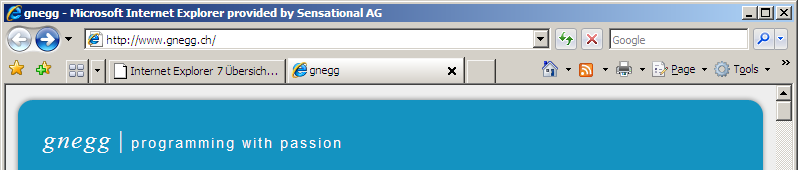
IE7 – Where is the menu?

Today, I finally went ahead and installed the current Beta 3 of Internet Explorer, so I too will have the opportunity to comment on it.

What I ask myself is: Where is the menu?

Well. I know it’s to the right of the screen behind these buttons. But it’s no real menu. It’s something menu-alike.

Why radically change the GUI? Even in Vista itself, there won’t be a menu any more. Or at least not a permanently visible one.

The problem is: It took me years to teach my parents, that all functionality of a program is accessible via the menu and that the menu is always at the top of the application (whereas it’s at the top of the screen on the mac).

Now with this new mood of removing the menus and putting them behind arbitrary buttons, how will I explain my parents how to use the application? I can’t say “Go to File / Save” any more. Besides the names of the menu items, in the future I will also have to remember where the menu is.

And as each application will do it differently, I’ll have to remember it countless of times for different applications.

And even if I know: How to explain it to them? “Click that Icon with the cogwheel”? I doubt they’d associate that icon with the same thing as I do. Thankfully in IE7, there’s still text so I could say “Click on Tools”. But what if some “intelligent” UI designer decides that not even the text is needed any more?

In my opinion, removing the menu has nothing to do with making the application easier to use. It’s all about looking different. And looking different is counter-productive to usability. Why move away from something everyone knows? Why change for changes sake?

It’s not that people were overwhelmed by that one line of text at the top of the application. People that didn’t use the menu didn’t bother. But in the case where they needed it, or needed assistance in using it, it was clear where it was and how to use it.

This has changed now.

And even worse: It has changed in a non-consistant way: Each application will display its own menu replacement where each one will work in a different way.

So I repeat my question: How can I teach my parents how to use one of these new applications? How can I remotely support them if I can’t make them “read the menu” when I’m not sure of the layout of the application in question?

Thankfully, for my parents browsing needs, all this doesn’t apply: They are happy users of Firefox.

But I’m still afraid of the day when the new layouts will come in effect in Office, Acrobat and even the file system explorer (in vista). How to help them? How to support them?

Usable Playstation emulation

Up until now, the Playstation emulation scene was – in my opinion – in a desolate state: Emulators do exist, but they are dependant on awfully complicated to configure plugins each with its own bugs and features and none of the emulators were updated in the last two years.

Up until now, the best thing you could do was to use ePSXe with the right plugins. What you got then was a working emulation with glitches all over the place. Nothing even remotely comparable to the real thing.

And it failed my personal acceptance check: Final Fantasy 7 had severe performance problems (“slideshow” after battle and before opening the menu interface) and the blurred color animation on the start of a battle didn’t work either.

Well. I was used to the latter problem: They never worked and it was – for me – a given fact that these animations just don’t work in emulators

The other thing that didn’t work in epsxe was FFIX. You could play up to that village where they are creating these black mage robots. The emulator crashed on the airship movie after that part of the game. The workaround was to downgrade to epsxe 1.5.1 which actually worked, but IMHO that just underlines the fact that epsxe is not what I’d call working software.

I was not willing to cope with that – mainly because I own a PSOne, so I could use that. Unfortunately, it’s an european machine though and both games I own and I’m currently interested in replaying, FFIX and FFVI, are german and especially FFVI is the worst translation I’ve ever seen in a game (even the manual was bad, btw).

So, there is some incentive in getting an emulator to work: You know, getting the US versions of the games isn’t exactly hard, but playing them on a european console is quite the challenge even if the games were optained through retail channels.

Keep in mind that a) both games are no longer sold and b) I own them already albeit in the wrong language.

And today I found for the Playstation what ZSNES was compared to Snes9x back in 1995: I’m talking about the emulator pSX emulator.

Granted. The name is awfully uninventive, but the software behind that name, well… works very, very nicely:

  • No cryptic plugins needed. Unpack, run, play.
  • It’s fast. No performance problems at all on my MacBook Pro (using BootCamp)
  • It’s stable. It just does not crash on me.
  • And you know what: Even the color animations work – precisely these color animations which we were told would never work properly on PC hardware.

But I’m not finished yet: The software even is under active development! And the author is actually taking and even fixing(!) bug reports. He/She is never blaming the player for bad configurations on the emulators forum. He’s always looking into reports and often fixing the stuff reported.

It’s not Free (freedom) software. It’s Windows only. But it has one hell of an advantage over all other Playstation emulators out there: It works.

As I hinted above: This is just like SNES emulation back in 1995: You had many abandoned projects, one emulator you were told was good (Snes9x) and one that worked (ZSNES). It looks like history is once again repeating itself.

My big, heartfelt thanks to whoever is behind pSX emulator! You rock!

Tracking comments with cocomment

I’m subscribed to quite a long list of feeds lately. Most of them are blogs and almost all of them allow users to comment on posts.

I often leave comments on these blogs. Many times, they are as rich as a posting here as I got lots to say once you make me open my mouth. Many times, I quietly hope for people to respond to my comments. And I’m certainly eager to read these responses and to participate in a real discussion.

Now this is a problem: Some of the feeds I read are aggregated feeds (like PlanetGnome or PlanetPHP or whatever) and it’s practically impossible to find the entry in question again.

Up until now, I had multiple workarounds: Some blogs (mainly those using the incredibly powerful Serendipity engine) provide the commenter with a way to subscribe to an entry, so you get notified per Email when new comments are posted.

For all non-s9y-blogs, I usually dragged the link to the site to my desktop and tried to remember to visit them again to check if replies to my comments where posted (or maybe another interesting comment).

While the email method was somewhat comfortable to use, the link-to-desktop one was not: My desktop is enough cluttered with icons without these additional links anyways. And I often forgot to check them none the less (making a bookmark would guarantee myself forgetting them. The desktop link at least provides me with a slim chance of not forgetting).

Now, by accident, I came across cocomment.

cocomment is interesting from multiple standpoints. For one, it just solves my problem as it allows you to track discussions on various blog entries – even if they share no affiliation at all with cocomment itself.

This means that I finally have a centralized place where I can store all my comments I post and I can even check if I got a response on a comment of mine.

No more links on the desktop, no more using bandwidth of the blog owners mail server.

As a blog owner, you can add a javascript-snippet to your template so cocomment is always enabled for every commenter. Or you just keep your blog unmodified. In that case, your visitors will use a bookmarklet provided by cocomment which does the job.

Cocomment will crawl the page in question to learn if more comments were posted (or it will be notified automatically if the blog owner added that javascript snippet). Now, crawling sounds like they waste the blog owners bandwidth. True. In a way. But on the other hand: It’s way better if one centralized service checks your blog once than if 100 different users each check your blog once. Isn’t it?

Anyways. The other thing that impresses me about cocomment is how much you can do with JavaScript these days.

You see, even if the blog owner does not add that snippet, you can still use the service by clicking on that bookmarklet. And once you do that, so many impressive things happen: In-Page popups, additional UI elements appear right below the comment field (how the hell do they do that? I’ll need to do some research on that), and so on.

The service itself currently seems a bit slow to me, but I guess that’s because they are getting a lot of hits currently. I just hope, they can keep up, as the service they are providing is really, really useful. For me and I imagine for others aswell.

PostgreSQL: Explain is your friend

Batch updates to a database are a tricky thing because of multiple aspects. For one, many databases are optimized for fast read access (though not as optimized as say LDAP). Then, when you are importing a lot of data, you are changing the structure of the data already in there which means that it’s very well possible that the query analyzer/optimizer has to change its plan in mid-batch. Also, even if a batch import is allowed to take a few minutes when running in the background, it must not take too long either.

PopScan often relies heavily on large bulk imports into its database: As the applications feature set increased in time, it has become impossible to match all of the applications features to a database which may already be running at the vendors side.

And sometimes, there is no database to work with. Sometimes, you’re getting quite rough exports from whatever legacy system may be working at the other end.

All this is what forces me to work with large bulk amounts of data coming in in one of many possible formats: Other databases, text files, XML files, you name it.

Because of a lot of bookkeeping and especially tracking of changes in the data to allow to synchronize only changed datasets to our external components (Windows Client, Windows CE Scanner), I can’t just use COPY to read in a complete dump. I have to work with UPDATE/INSERT which doesn’t exactly help at speeding up the process.

Now what’s interesting is how indexes come into play when working with bulk transfers: I had it both now: Sometimes it’s faster if you drop them before starting the bulk process. Sometimes you must not drop them if you want the process to finish this century.

EXPLAIN (and top – if your postgres process is sitting there with constant 100% CPU usage, it’s full-table-scanning) is your friend in such situations. That and an open eye. Sometimes, like yesterday, it was obvious that something was going wrong: That particular Import I was working with slowed down the more data it processed. We all know: If speed is dependent of the quantity of data, something is wrong with your indexes.

Funny thing was: There was one index too many in that table: The primary key.

The query optimizer in PostgreSQL thought that using the primary key for one condition and then filtering for the other conditions was faster. But it was dead wrong as the condition on which I checked the primary key yielded more data with every completed dataset.

That means that PostgreSQL had to sequentially scan more and more data with every completed dataset. Using the other index, one I specifically made for the other conditions to be checked, always would have yielded a constant amount of datasets (one to four) so filtering after the PK condition after using that other index would have been much faster. And constant in speed even with increasing amounts of imported datasets.

This is one of the times when I wish PostgreSQL had a way how to tell the optimizer what to do. To tell it: “Take index a for these conditions. Then filter after that condition.”.

The only way to accomplish that so far is to drop the index that was used by accident. It’s just that it feels bad, dropping primary keys. But here it was the only solution. To PostgreSQL’s defense, let me add though: My 8.1 installation took the right approach. It was the 7.3 installation that screwed here.

OK. So just drop the indexes when making a bulk import. Right? Wrong.

Sometimes, you get a full dump to import, but you want to update only changed datasets (to mark only the ones that actually changed as updated). Or you get data which is said to have a unique key, but which doesn’t. Or you get data which is said to have a foreign key, but which violates it.

In all these cases, you have to check your database for what’s already there before you can actually import your dataset. Otherwise you wrongly mark a set as updated, or your transaction dies because of a primary key uniqueness violation or because of a foreign key violation.

In such cases, you must not remove the index your database would use in your query to check if something is already there.

Belive me: The cost of updating the index on each insert is MUCH lower than the cost of doing a full table scan on every dataset you are trying to import ;-)

So in conclusion let me tell this:

  • Bulk imports are interesting. Probably even more interesting than complex data selection queries.
  • EXPLAIN is your best friend. Learn how to read it. Learn it now.
  • So-called “rules of thumb” don’t apply all the time.
  • There are few things in life that beat the feeling of satisfaction you get after staring at the output for EXPLAIN for sometimes hours and optimizing the queries/indexes in question countless times, when your previously crawling imports begin to fly.